
Controls & Physics
Worming from Home controls and physics explained — keyboard bashing technique, the touch keyboard debate, controller bindings, accessibility and Steam Deck.
Introduction
Every joke in Worming from Home is downstream of one design decision: you are a worm, and worms do not have hands. Movement is pure ragdoll physics — short impulses, momentum, and a lot of face-first keyboard contact — and the game's entire difficulty curve is really a movement curve. This section covers every way to bend the physics to your will: the flop-and-fling fundamentals, when to use the touch keyboard alternative, controller bindings for players who want precision, the accessibility options including color alternatives and custom volume controls, and the Steam Deck experience that lets you fling from the couch. It also covers the practical stuff — PC requirements, the Windows Defender startup issue and performance settings — so nothing technical stands between you and a smooth wriggle.
Control Options Compared
| Input style | Strengths | Best for |
|---|---|---|
| Head-bash keyboard | Pure comedy with full physics expression | The intended first experience |
| Touch keyboard | Deliberate presses, more precision | Spreadsheet-heavy workdays |
| Controller | Consistent inputs, full support built in | Long sessions and Wormhole parkour |
Movement Setups
The Flop Specialist
Keyboard-native play — the intended comedy, mastered.
The Touch Typist
The deliberate alternative — presses over chaos.
The Deck Player
Verified handheld flinging from anywhere in the house.
Core Mechanics
Movement runs on impulse physics. Your worm accelerates when you input force, keeps momentum across the desk, and only stops when friction or furniture intervenes — which means skilled play is about impulse management, not speed. Short taps produce controlled flops for precise key hits, while long committed inputs produce the full-desk flings that cross the office in one bounce. The keyboard itself registers head contact per key, so approach angle matters as much as force. Layered on top are the alternatives: the touch keyboard swaps flinging for deliberate presses, controllers map the same impulses to sticks and triggers, and accessibility options adjust color contrast and volume independently. Every input path drives the same physics, so skills transfer — a worm that learns momentum on the keyboard is already half-trained for the Wormhole.
Advantages
The physics-first design makes skill growth visible and satisfying. Because every task uses the same movement system, an hour of practice improves spreadsheets, printer trips and parkour simultaneously — there is no per-minigame control relearning. The option set is genuinely broad for an indie title: full controller support, a touch keyboard mode that changes the game's feel, color alternatives for key visibility, independently adjustable volume controls and Steam Deck verification for portable play. Accessibility is treated as a real feature, with the game playable without precise timed input for worms who need it. And the ragdoll is consistent — the same input in the same spot produces the same result often enough that mastery is real, even when the comedy framing suggests otherwise.
Challenges
Ragdoll physics is a comedy engine first and a control scheme second, and the difference shows at the worst moments. Identical inputs can produce slightly different landings, which turns tight timers into coin flips on bad days. The touch keyboard debate exists because both options have real costs — flinging is fast but chaotic, touch is precise but sluggish — and the game offers no hybrid. Key bindings are more limited than simulation veterans expect, so players with strong muscle-memory preferences may not find their exact layout. The Windows Defender startup flag from launch week added a technical wart for some players, though a fix has been in progress on the official channels. None of this breaks the game, but worms expecting the precision of a platformer should calibrate expectations before the Wormhole.
Frequently Asked Questions
How do I move more precisely?+
Should I use the touch keyboard or the normal keyboard?+
Is Worming from Home good on Steam Deck?+
Quick Tips
Learn to stop before you learn to go. Friction is your only brake, and a worm that plans its resting point lands on target keys far more often than a faster worm that overshoots everything. Practice short impulse taps in the office during quiet moments until stopping feels automatic rather than accidental. Fold it into your normal routine and the benefit compounds quietly across the entire career.
Remap anything that feels wrong immediately in the settings menu. The game supports custom key bindings, and an hour of play on an uncomfortable layout builds bad habits that take far longer to unlearn than remapping takes to do. Your hands will thank you by the second workweek. Fold it into your normal routine and the benefit compounds quietly across the entire career.
Check the official channels before fighting Windows Defender yourself. Launch-week players hit a startup flag that the developer has been addressing publicly, so adding a manual exclusion may become unnecessary after the next patch — verify integrity through Steam first and only exclude if the problem persists. Fold it into your normal routine and the benefit compounds quietly across the entire career.
Featured
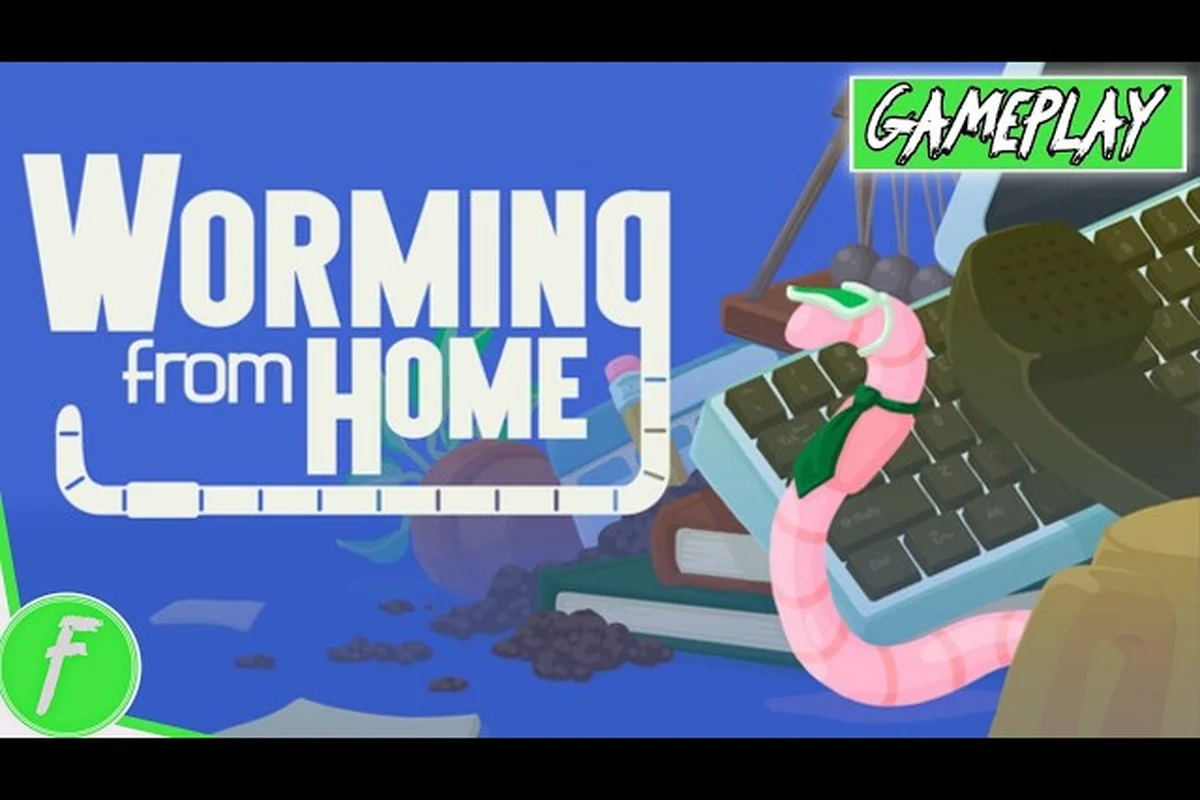
Worming from Home Controls Guide: Ragdoll Flings and Smashing
Master the Worming from Home controls with this guide to ragdoll flinging, head-bash smashing, momentum tricks, and the desk-flailing basics every new worm needs.
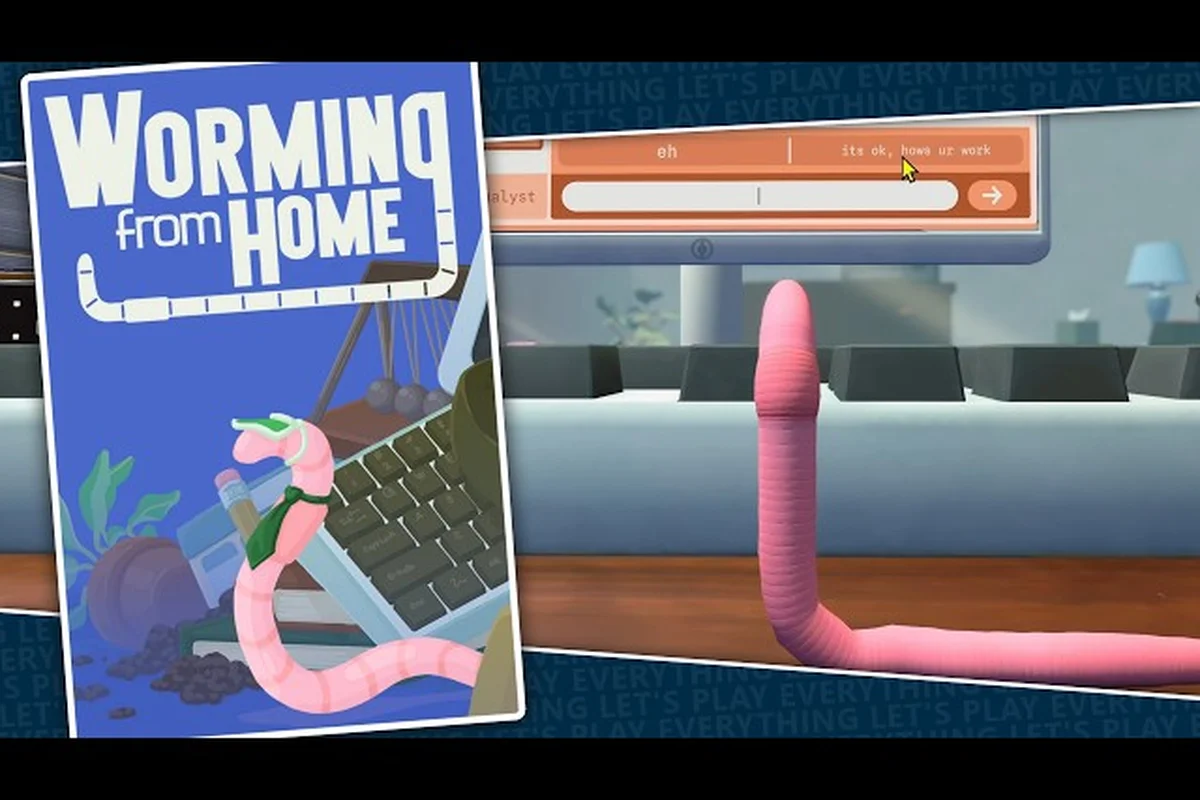
Worming from Home Game Not Starting: Launch Fixes That Work
Fix Worming from Home game not starting errors with Windows Defender steps, crash solutions, launch settings and PC requirement checks.
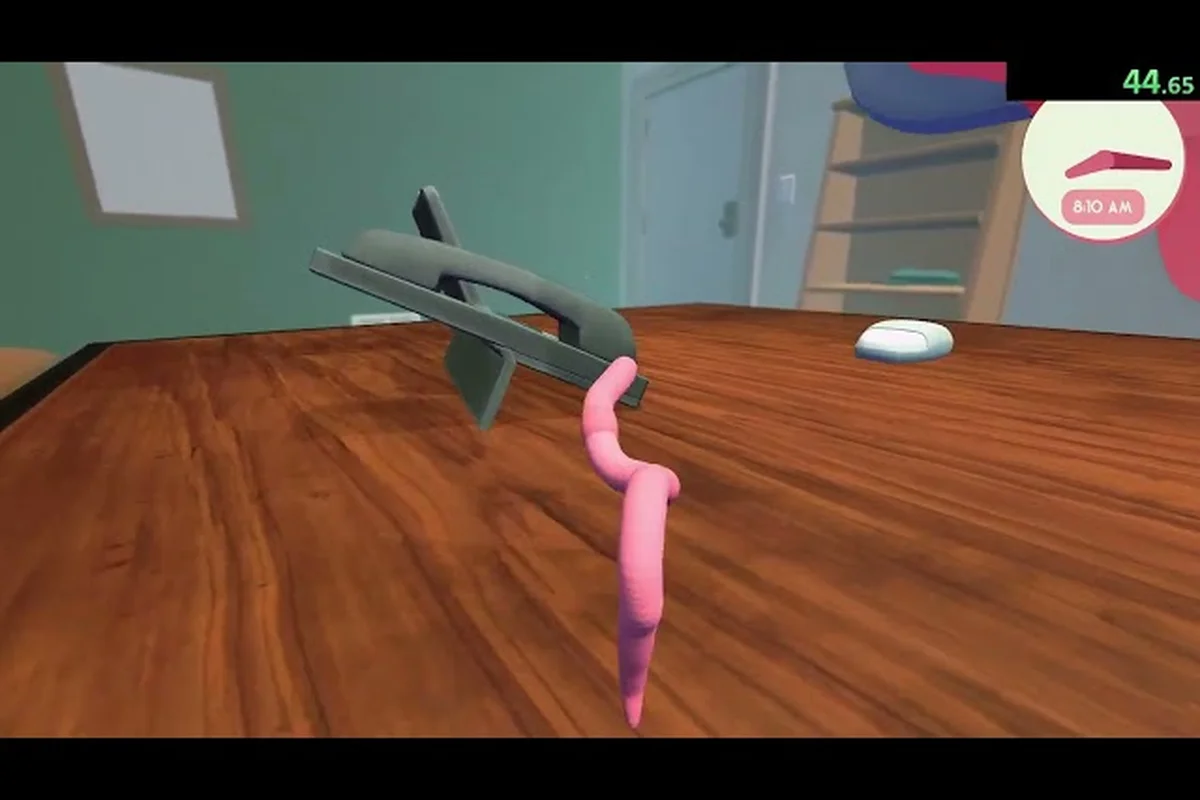
Worming from Home How to Jump: Momentum Tricks and Camera Tweaks
Land every leap in Worming from Home with this how to jump guide covering momentum tricks, ragdoll physics, camera tweaks, and how to type faster mid-air.
All Articles
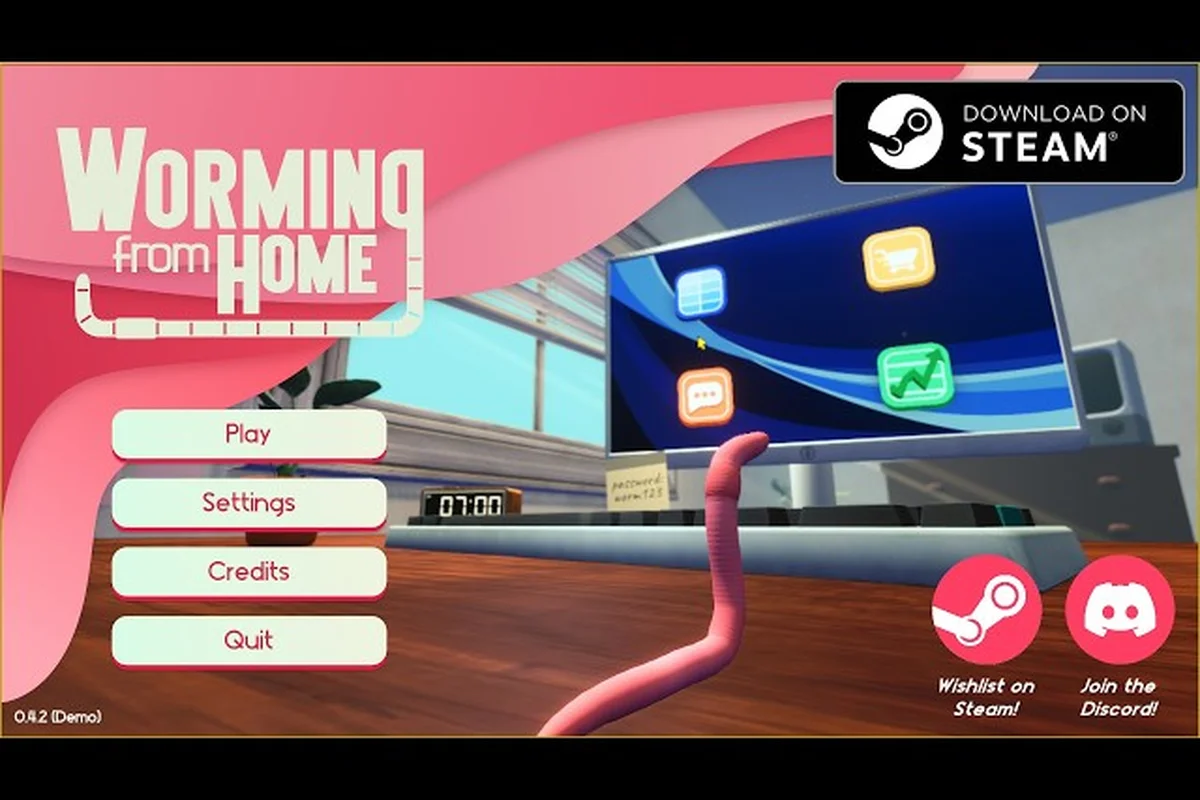
Worming from Home Key Bindings: Remap Layout and PC Specs
Remap every Worming from Home key binding to your liking with this key bindings guide, plus minimum system requirements, FPS settings, and performance tweaks.
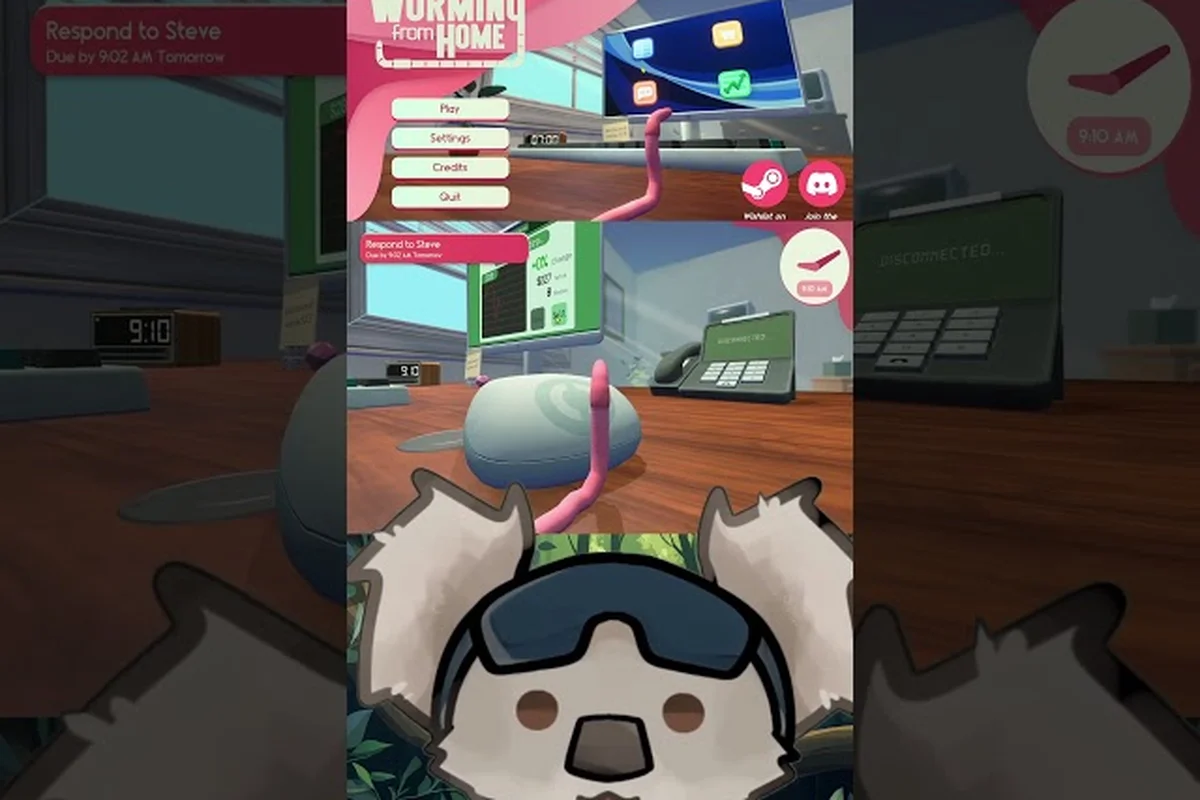
Worming from Home Steam Deck Settings: Best Tweaks and Tips
Tune Worming from Home Steam Deck settings with color alternatives, custom volume controls, timed-input toggles and handheld fling tips.
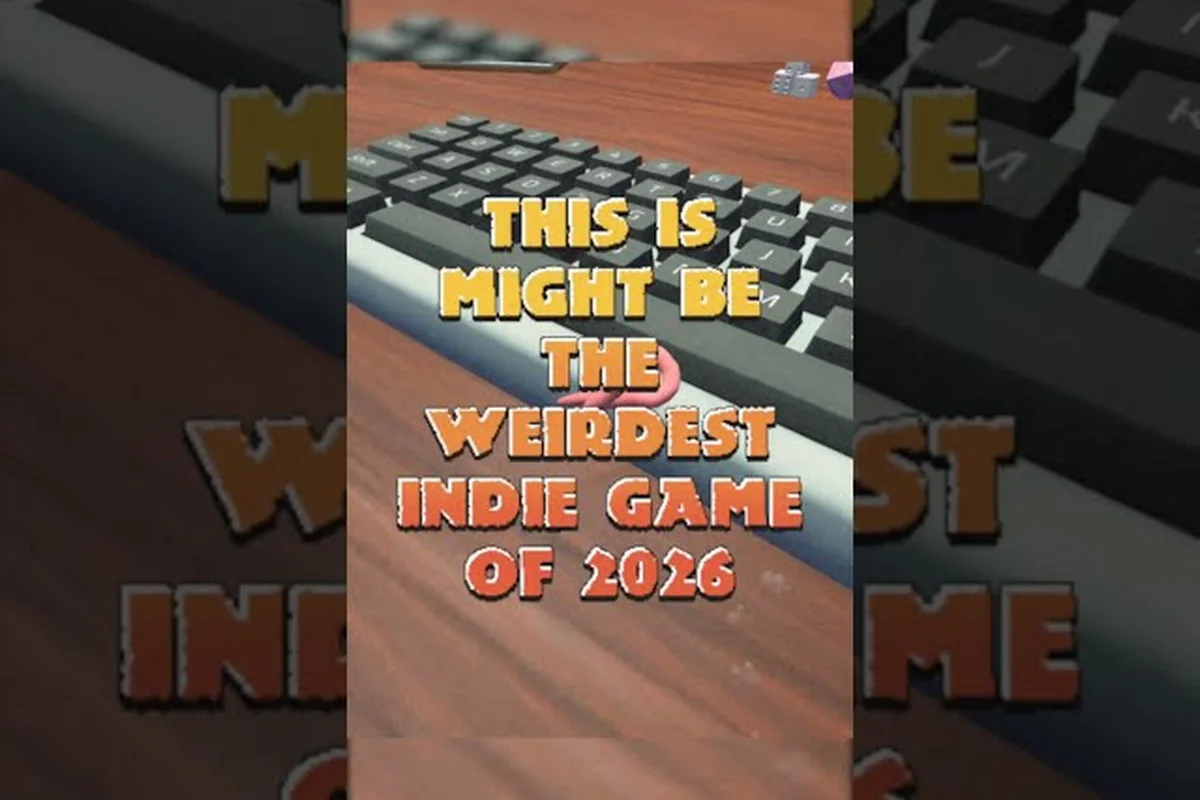
Worming from Home Touch Keyboard vs Keyboard: Best Input Pick
Compare Worming from Home touch keyboard vs keyboard inputs: fling control, typing speed, controller notes and Steam Deck compatibility.