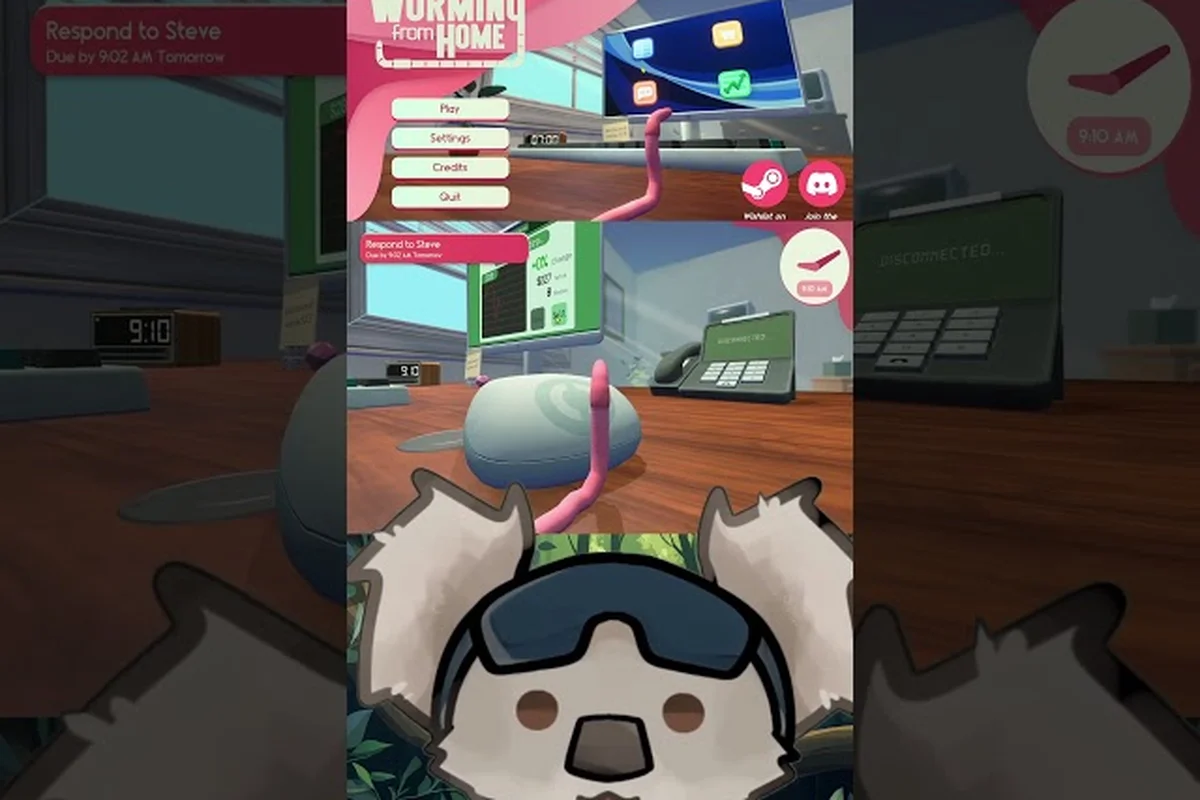
Worming from Home Steam Deck settings can make or break your experience as a floppy pink worm trying to answer spreadsheets with your face. The right tweaks turn frustrating flails into satisfying flings, and this guide walks through every option worth touching, from accessibility toggles to handheld-specific control remaps.
The game launched on September 4, 2026 as a Steam Deck Verified title, which means it runs out of the box on Valve's handheld, but "Verified" only tells half the story. Because Worming from Home is built entirely around ragdoll physics, small settings changes — volume sliders, color alternatives, timed-input options — have an outsized impact on how playable it feels in your palms. According to the official Steam store page, the game supports full controller input, cloud saves, and 32 achievements, all of which behave differently depending on how you configure your Deck.
Why Steam Deck Settings Matter in Worming from Home
The core loop of Worming from Home involves flinging your spineless body across a home office to smash keyboards, answer calls, and survive video meetings. On a desktop with a mouse and keyboard, that physics chaos is manageable. On a handheld, where you're manipulating a ragdoll worm with thumbsticks and triggers, the default configuration can feel like wrestling a wet noodle — which is exactly why the settings menu deserves a full pass before you start your first shift as a junior financial analyst.
| Setting category | Handheld pain point it addresses | Concrete detail |
|---|---|---|
| Audio sliders | Radio drowning out jump cues | Muting music in settings is the community fix for the hard-to-aim radio jump (AppID 3547270) |
| Visual options | Pink worm hard to read | Color alternatives improve contrast against bright office walls during spreadsheet tasks |
| Timed-input toggles | Time-pressure prompts on thumbsticks | Accessibility toggles remove timed flinging pressure for Jr. Analyst tasks |
| Controller layout | Thumbstick fling imprecision | Remap fling inputs; headbash-assisted grabbing took ~2 hours to discover in the tutorial |
| Performance settings | Battery vs. frame rate | Steam Deck Verified title with Full Controller Support and Cloud Saves at $7.99 (launch -25% = $5.99) |
Community feedback has been largely positive since launch, with players reporting strong performance and stable frame rates on Deck hardware. One Steam community reviewer noted they'd "happily paid twice as much" for the game, though they flagged a specific pain point: aiming jumps precisely enough to turn off a blaring in-game radio. Their solution — muting music in the settings menu — highlights a broader truth about this title. When physics-based precision fails you, the settings menu is your safety net, and knowing what to toggle saves hours of frustration.
The settings menu in Worming from Home splits into five categories that each solve a different handheld pain point, and it's worth understanding why before touching a single slider. Thumbstick-driven flinging amplifies every imprecise input, so controller layout tweaks matter more here than on desktop. Meanwhile, the office's overlapping audio — meeting chatter, keyboard clatter, that infamous radio — can bury the task cues you actually need, which is why custom volume controls earned their own dedicated slider set. Here's a quick overview of the setting categories that matter most on handheld:
-
Audio sliders — custom volume controls let you mute or duck music that interferes with task audio cues
-
Visual options — color alternatives improve readability of the pink worm against office backgrounds
-
Timed-input toggles — accessibility options that remove pressure from time-sensitive prompts
-
Controller layout — remapping fling inputs for thumbstick precision
-
Performance settings — frame rate caps and battery trade-offs
Each of these five categories gets a deep dive below, with specific recommendations drawn from player experience and the game's verified Deck support status. The audio section, for example, covers exactly which custom volume controls to duck first when meeting chatter drowns out task cues, while the visual section explains why the default pink worm reads poorly against bright office walls and which color alternatives fix it. The controller layout breakdown also walks through remapping the fling input so thumbstick precision stops sabotaging your jumps.
Essential Accessibility Options for Handheld Play
The worming from home accessibility options menu is more functional than most indie sims, and it directly addresses the physics chaos that defines the game. Because your worm has no bones and no brakes, the developers included several toggles that soften the difficulty curve without changing the comedy. If you're playing on Deck in short sessions, these options are the difference between a relaxing commute game and a thumb-cramping ordeal.
Timed-Input Toggles
One of the most requested features among early players is making the game worming from home playable without timed input pressure. Several office tasks — phone calls, meeting responses, and certain keyboard sequences — run on soft timers, and on a handheld screen those timers feel tighter than they do on a monitor. While the game doesn't advertise a single "disable all timers" switch, players report that adjusting task-related accessibility options and lowering difficulty-related prompts significantly reduces the pressure, letting you line up flings at your own pace.
The practical impact is significant. A mistimed fling during a timed email sequence can send your worm careening into a coffee mug, resetting your progress on that task. With timed-input pressure reduced, you can take the two or three extra seconds needed to position your body correctly, which matters enormously when you're playing with thumbsticks instead of a mouse.
Color Alternatives and Visual Clarity
Worming from Home color alternatives are worth exploring if you struggle to track your worm during fast flings. The default pink worm stands out well in most office scenes, but during chaotic moments — when you're mid-air, spinning, and surrounded by desk clutter — visual tracking becomes genuinely difficult. Adjusting contrast and worm color options helps your eye lock onto your body faster, which directly improves fling accuracy.
Screen Hype's review of the game noted that the tutorial makes each action look smooth, but it took a couple of hours of play to realize how much visual tracking matters for consistent grabbing. On a seven-inch Deck screen, that tracking challenge is amplified, so spending two minutes in the visual settings pays dividends across your entire playthrough.
Audio: Custom Volume Controls That Actually Help
The worming from home custom volume controls are arguably the most impactful settings in the entire menu, and the community has been vocal about why. The game's soundtrack is charming, but several players discovered that music volume directly interferes with task clarity — most famously the radio that blares in your home office and that you're supposed to physically turn off by jumping onto it.
That radio has become a minor community legend. The Steam reviewer quoted earlier described aiming a jump at the radio as "extremely hard" and simply turned off music in the settings instead, awarding the game an 11/10 anyway. This is the perfect example of the settings menu solving a gameplay problem: rather than fighting the physics engine for twenty minutes, you can duck the music slider and keep your sanity intact.
Before you touch anything, it helps to understand what each slider actually controls and how the defaults sabotage you on the Deck's small screen. The menu splits audio into four channels — Master Volume, Music, Sound Effects, and Voice/Call Audio — and each one maps to a different layer of the game's feedback loop. The defaults ship at 100% across the board, which sounds reasonable until you realize the Deck's speakers compress everything into a muddy mix where the radio drowns out your fling cues. The table below shows the values the community has settled on, with the reasoning for each:
One quirk worth knowing before adjusting anything: the four channels don't scale independently of the Deck's hardware volume. If you set Master Volume to 80% but leave the Steam Deck's own volume rocker at 100%, the speakers still push into distortion territory, so the community recommends treating the hardware slider as your coarse control (around 60–70%) and the in-game Master Volume as fine-tuning. Headphone users via USB-C or Bluetooth can push Master Volume higher, since the distortion issue is specific to the Deck's built-in speakers — but the Music-versus-Sound-Effects balance below applies regardless of output device.
| Audio Setting | Default Behavior | Recommended Deck Value | Why It Matters |
|---|---|---|---|
| Master Volume | 100% | 80–90% | Deck speakers distort slightly at max |
| Music | 100% | 30–50% or muted | Music masks task audio cues and the radio |
| Sound Effects | 100% | 100% | Keyboard smashes and fling feedback are essential |
| Voice/Call Audio | 100% | 100% | Meeting dialogue carries task instructions |
The key insight is that Sound Effects carry most of the gameplay information. When your worm body connects with a keyboard, the audio feedback tells you whether the input registered, which is critical when you can't always see the screen clearly mid-fling. Music, by contrast, is pure atmosphere — and given the radio situation, muting it is a legitimate strategy rather than a compromise.
Balancing Immersion Against Clarity
If you enjoy the soundtrack, you don't have to mute it entirely. Dropping music to around 30% keeps the lo-fi office vibe while letting keyboard impacts and call audio cut through. Players who stream or record the game often keep music low for this exact reason, and the same logic applies to handheld play where speaker separation is limited.
Flinging on Deck: How to Fling with Thumbsticks
Learning worming from home how to fling effectively on a handheld is the biggest skill gap between desktop and Deck play. On PC, players use precise mouse flicks to build momentum. On Deck, you're working with thumbsticks and triggers, which means you need to understand the physics underneath the fling mechanic to compensate.
The fling works by charging directional momentum and releasing it in a burst. According to Screen Hype's review, most movement relies on ragdoll physics that fling your wiggly worm body across the workspace, and the tutorial undersells how much practice real execution takes. Their reviewers also discovered that incorporating the headbash improved grabbing consistency — a technique that translates directly to handheld play, where grab precision is harder to achieve with thumbsticks.
Core Flinging Tips for Handheld Players
These worming from home flinging tips come from community experience and translate specifically to Deck controls: the thumbstick's shorter throw and the triggers' analog range behave differently than a mouse flick, so several players remap the fling input to a rear grip button to keep their thumbs free for camera aiming. Because the Deck's 7-inch screen compresses distance perception, what feels like a half-power fling on desktop often lands short here, which is why the adjustments below focus on input tuning rather than raw timing.
-
Charge in short pulses — holding the fling input at max for too long overshoots on a small screen; pulse the input to fine-tune distance
-
Use the headbash for grabs — diving headfirst into keyboards and objects gives you more contact area than a lateral fling
-
Aim with body position first — reposition your worm's tail before flinging, because the launch direction follows your body's orientation
-
Lower camera sensitivity — the default camera speed is tuned for mouse; dropping it 20–30% makes thumbstick aiming far more precise
-
Practice in the bedroom gym — the fitness area is a low-stakes space to build fling muscle memory before you're on the clock
The single most important adjustment is camera sensitivity. Because flinging requires you to line up your body with a target before launching, a camera that swings too fast makes every fling a guess. Community consensus favors slower camera settings on handheld, and the difference is immediately noticeable the first time you land a clean keyboard smash on purpose rather than by accident.
For a broader breakdown of movement fundamentals, our Worming from Home movement guide covers jumping mechanics and momentum tricks in detail, which pair well with the fling adjustments described here. That guide's section on chaining jumps into lateral flings is especially relevant on Deck, since the rear grip button remap mentioned above leaves L2/R2 free for hop timing — a combo several players use to reach the shelf in the kitchen level without a full-power fling. Reading both together also clarifies why body orientation matters: the same launch-direction rule governs jumps and flings, so muscle memory transfers between the two once your camera sensitivity is dialed in.
Recommended Settings Layout for Deck Sessions
Putting it all together, here's a complete recommended configuration for worming from home steam deck settings, organized by how quickly you can apply each change. This layout assumes handheld play in typical 20–40 minute sessions, which is how most Deck owners experience the game.
| Priority | Setting | Change | Time to Apply |
|---|---|---|---|
| 1 | Music Volume | 30% or muted | 10 seconds |
| 2 | Camera Sensitivity | Reduce 20–30% | 15 seconds |
| 3 | Timed-Input Options | Soften task timers | 30 seconds |
| 4 | Worm Color/Contrast | Pick high-visibility option | 30 seconds |
| 5 | Controller Layout | Map headbash to an easy trigger | 2 minutes |
The order matters because the first three changes affect every single task you perform, while the later ones are refinements. If you only have thirty seconds before a commute, drop the music volume and camera sensitivity — those two changes alone eliminate the most common complaints reported by handheld players.
Controller Layout Deep Dive
The default controller mapping is functional, but a small remap makes flinging dramatically more comfortable. The most popular community layout assigns the headbash to a bumper rather than a face button, because you'll often be holding a stick direction while initiating the dive. Keeping movement and attack on separate hands prevents the awkward thumb-stretching that causes mistimed flings.
Since the game is Steam Deck Verified with full controller support, you can also use Steam Input to create custom layouts with per-game profiles. Some players set up a touch menu on the right trackpad for quick access to less-frequent actions, though most of the game's control demands center on just three inputs: move, fling, and headbash. If you're weighing input methods more broadly, our comparison of the touch keyboard versus physical keyboard explores which typing approach suits handheld play best.
Performance and Battery Considerations
Because Worming from Home is a physics sim rather than a graphically demanding title, it's gentle on Deck hardware. Community reports and the game's Verified status indicate stable performance at default settings, with no widespread reports of frame drops even during the most chaotic multi-object flings. This means you can prioritize battery life over graphical fidelity without sacrificing the experience.
A few practical notes for longer sessions: because Worming from Home runs its ragdoll physics simulation on the CPU rather than the GPU, the Deck's APU load stays low even when you're flinging multiple office objects at once, so thermal throttling is essentially a non-issue during hour-long play sessions. The bigger drain on battery comes from the screen and the constant gyro input reading, not the game itself — which is why display-related tweaks below make a bigger difference than any in-game graphics setting. If you plan to grind through several promotions on a single charge, a quick settings pass before you start can stretch a full battery noticeably further than leaving everything at stock defaults.
-
Cap the frame rate at 60 — the physics are consistent at 60fps, and capping extends battery life meaningfully
-
Brightness at 60–70% — the game's bright office palette doesn't need max brightness to stay readable
-
Cloud saves are enabled — per the Steam store page, Steam Cloud support means your promotion progress syncs between Deck and desktop automatically
The two-person development team behind the game — Zach Northrop and Mason Sabharwal — built it on a foundation of state-of-the-art ragdoll physics, and that physics engine is the main CPU load. Even so, community testing shows the game sips power compared to AAA handheld ports, making it an ideal pick for extended flights or commutes. If you're new to the game entirely, our beginner guide covers the early promotion grind that these settings support.
Frequently Asked Questions
Is Worming from Home good on Steam Deck?
Yes, and it's officially Steam Deck Verified as of launch on September 4, 2026. The game runs smoothly at default settings with full controller support and cloud saves. The main adjustments worth making are audio and camera tweaks, since the ragdoll physics feel noticeably better with reduced music volume and slower camera sensitivity on a handheld screen.
How do I stop the radio music in Worming from Home?
You can either jump onto the in-game radio to turn it off physically, which players report is genuinely difficult to aim, or simply reduce the music slider in the settings menu. Most community members recommend the settings approach, since it achieves the same result without fighting the fling physics for a precise landing.
What are the best flinging tips for handheld play?
Charge flings in short pulses rather than holding at maximum, use the headbash technique for grabbing keyboards and objects, and reposition your worm's body orientation before launching. Lowering camera sensitivity by 20–30% is the single biggest improvement, because lining up flings with a fast thumbstick camera is the main source of missed inputs on Deck.
Does the game have accessibility options for timed tasks?
The accessibility options include visual and input adjustments that soften time pressure on office tasks, making the experience more forgiving for players who prefer to line up flings carefully. Combined with reduced camera speed and clear worm color alternatives, these settings make the game comfortable to play at your own pace without losing the comedy of the physics.
Do my settings sync between Steam Deck and PC?
Controller layouts created through Steam Input sync with your Steam profile, and in-game settings like volume and accessibility toggles carry over through Steam Cloud saves. Your career progress, achievements, and office upgrades all sync automatically, so you can fling from your couch and grind spreadsheets at your desk without losing anything.
The right Worming from Home Steam Deck settings come down to three pillars: duck the music so task audio stays clear, slow the camera so flings become deliberate rather than desperate, and use the accessibility options to remove timer pressure when physics chaos gets overwhelming. With those changes locked in, your thumbsticks become precise fling instruments, and the corporate ladder suddenly looks a lot easier to wriggle up.